Skip the credit card authorization form -- use a TablelistPro payment link instead. Request a full deposit, pre-payment, or card on file to reduce no-shows by 99% and protect your business against chargebacks.
Payment links are especially useful for customers who submitted reservation requests or want to book multiple tables at once.
To create a payment link for a reservation that isn't in the system yet, first Add a Reservation on Mobile.
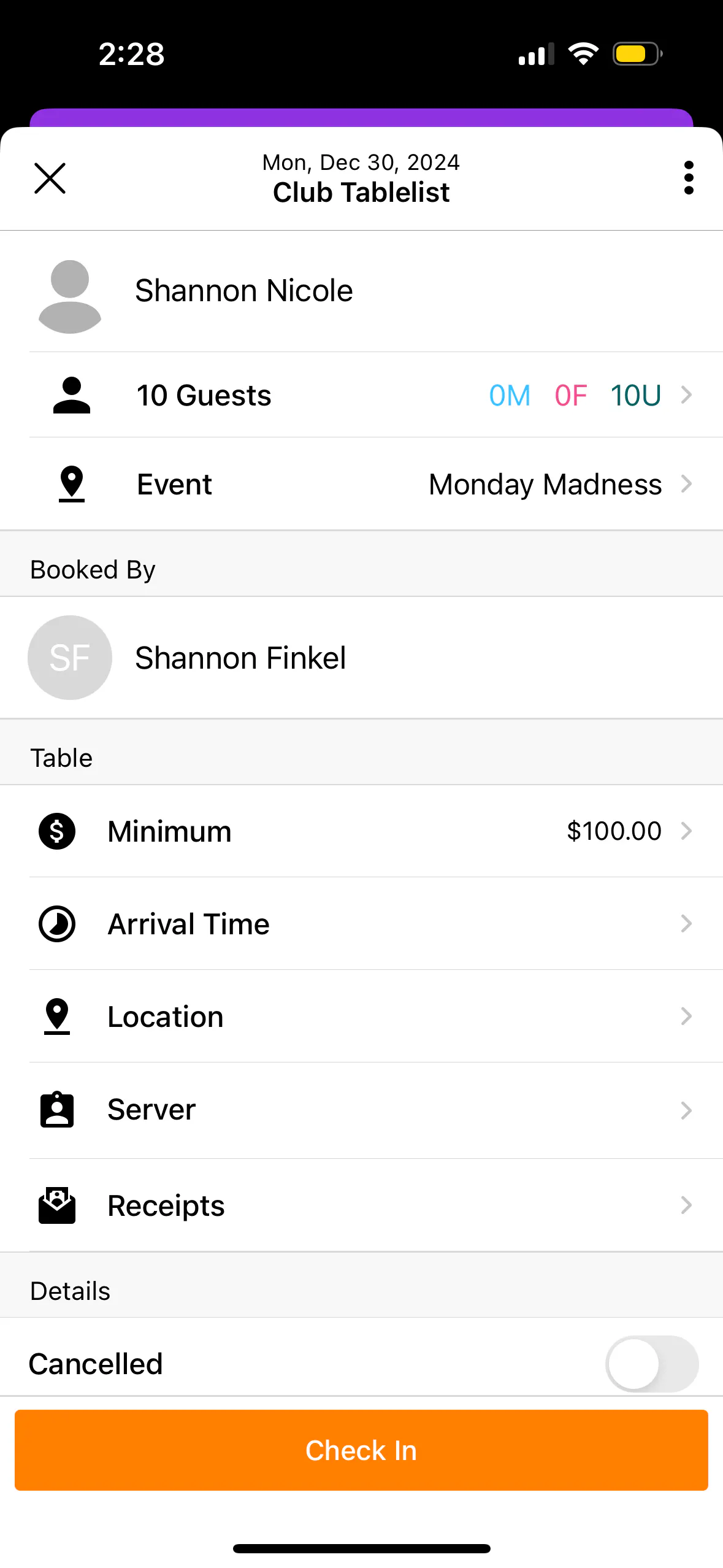
Once the reservation is saved, tap to open it. From there:
- Tap the three black dots on the right, choose Request Payment
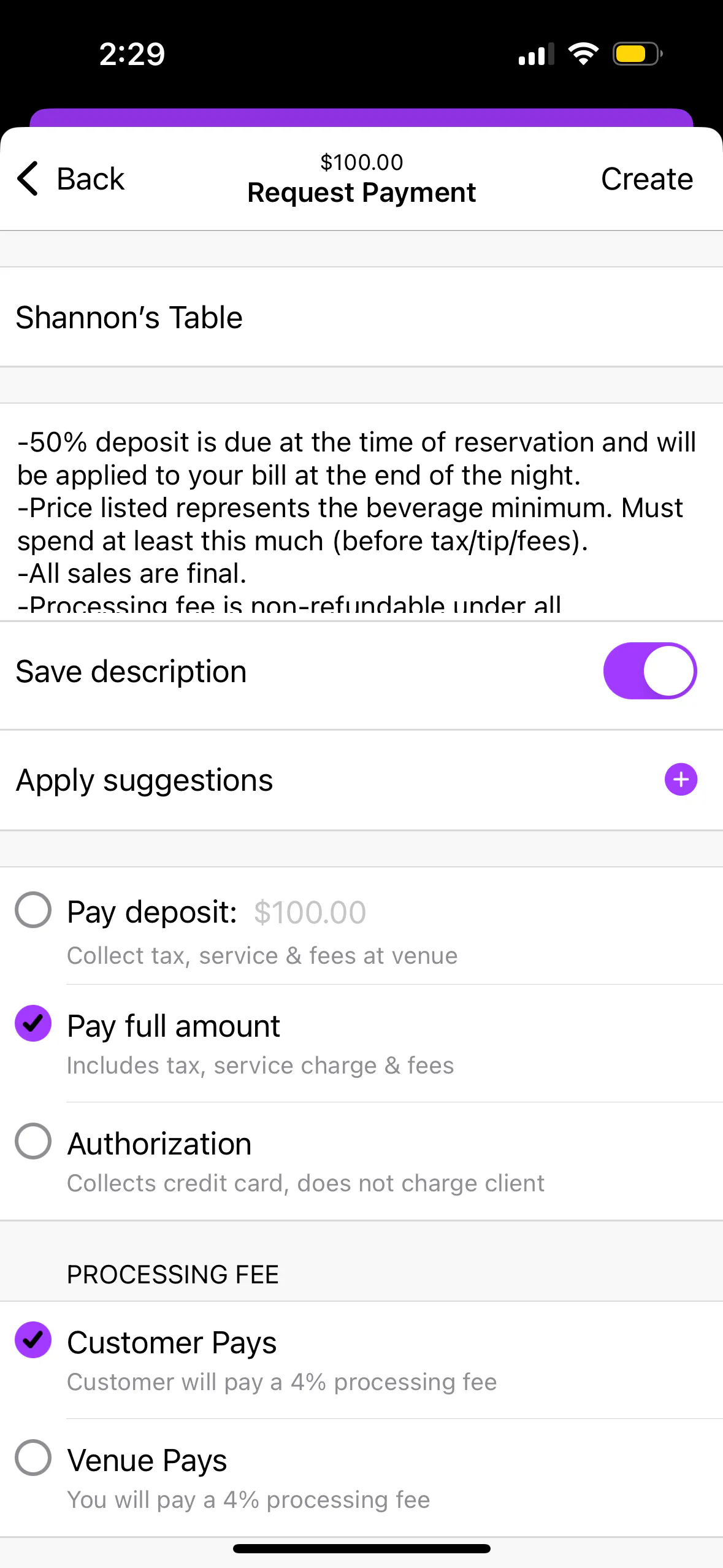
- Fill out the name, description, and payment type/amount
- You can apply pre-set description suggestions and save them for next time
- The customer will see the description during checkout
- Tap Create to generate the payment link
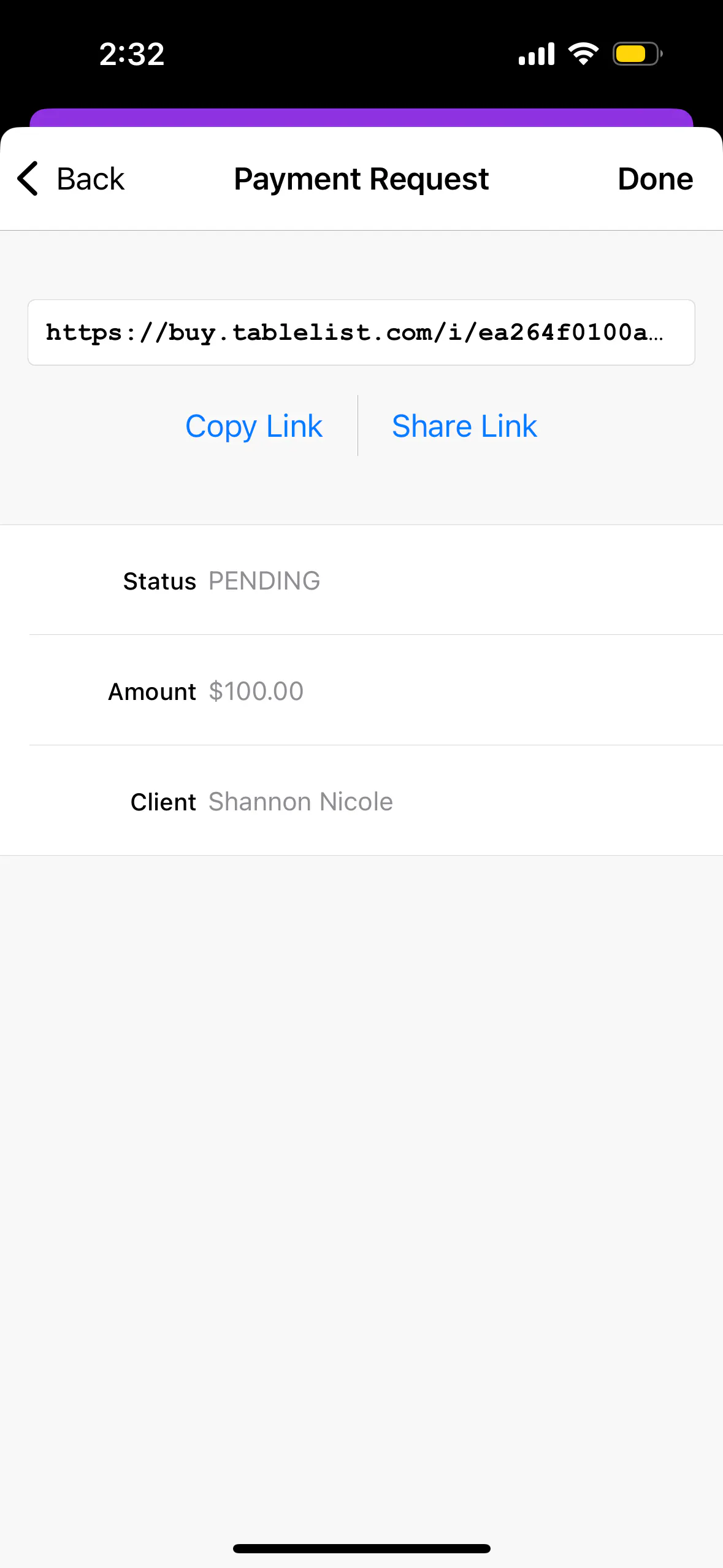
- Tap Copy Link to grab the URL and send it directly, or tap Share Link to send via text or email from TablelistPro
Once the link is generated, a yellow Pending tag appears on the reservation. When the customer pays, it becomes a green Auth (for authorizations), Deposit (for deposits), or Paid (for full pre-payments) button.
To create a payment link from a reservation request, go to the Reservations tab, select the date, then tap the pending requests number at the top. From there:
- Press Approve to accept the lead
- Go back to Reservations and open the customer's reservation
- Add a minimum spend (and optionally a table location, server, notes, etc.)
- Tap the three black dots, choose Request Payment, and fill out the details
- Follow the steps above