TablelistPro's POS Integration syncs spends and itemized receipts directly from your POS system to your TablelistPro reservations, saving you time and keeping everything accurate.
Pricing
POS Integration is an add-on feature and part of the Deluxe plan for $499/mo. Contact us to enable it.
Getting Started
TablelistPro uses Omnivore to connect with your POS system via a universal API.
Omnivore currently supports these POS systems, with more in development:
- NCR Aloha
- Micros 3700
- Micros Simphony1
- CBS NorthStar
- Brink
- POSitouch
- XPIENT
- Dinerware
- Azbar
- Maitre'D
- Veloce
- Squirrel
TablelistPro also integrates with Silverware.
Using the POS Integration
Once connected, you'll see a new tab when creating reservations in TablelistPro.
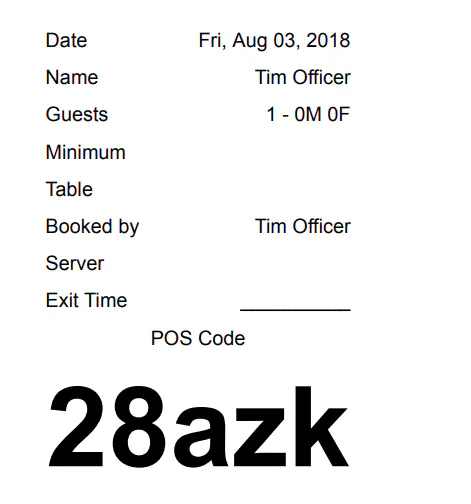
A 5-character POS code is generated for each reservation. This code links a ticket in your POS to a reservation in TablelistPro.
The code also shows up on printed chit receipts, so your servers can easily grab it and enter it into the POS.
Syncing POS Tickets
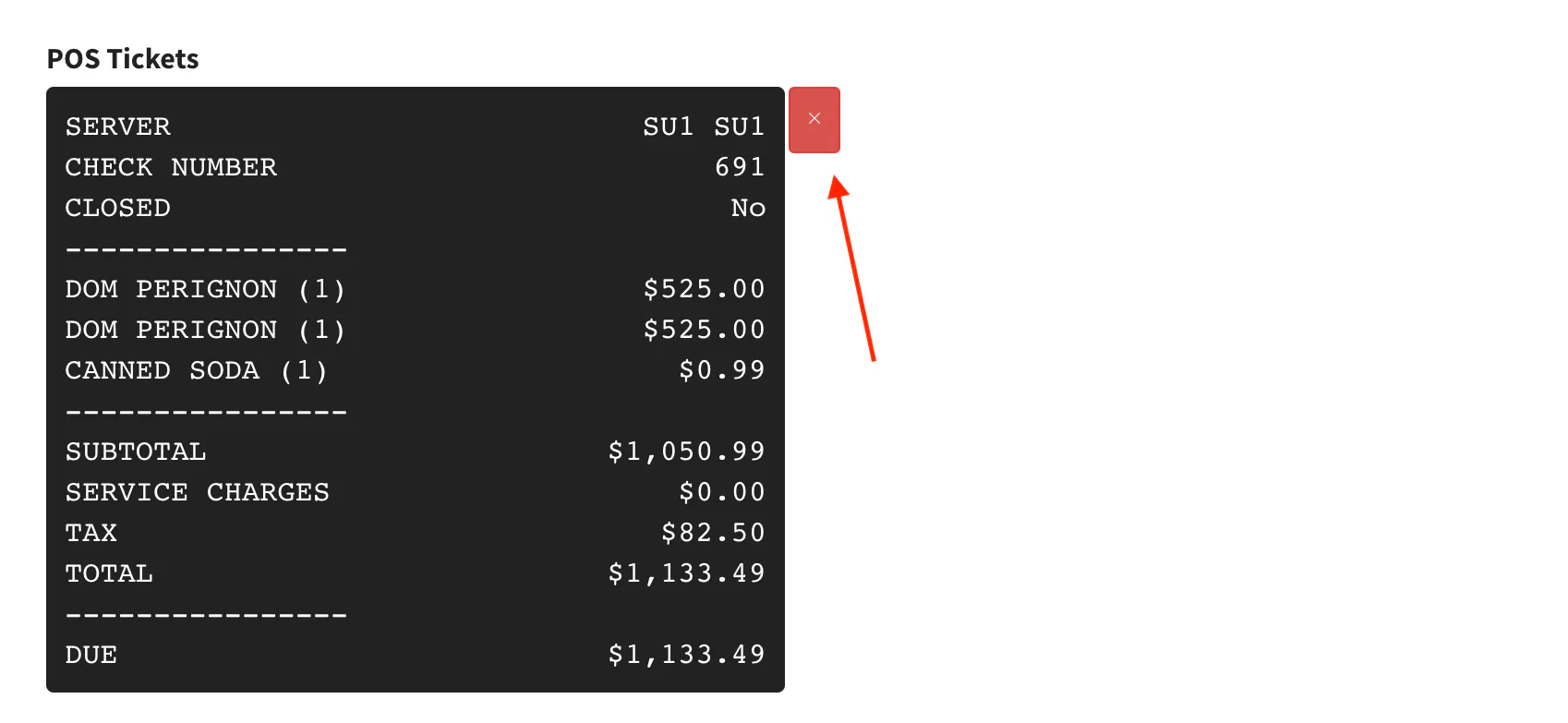
During setup, we'll add a special Tablelist menu item to your POS. When a server enters the POS code and sends the check, the spend and item receipt sync automatically to the reservation in TablelistPro.
Once synced, you'll see the POS Tickets on the reservation.
Disabling Sync on a Reservation
To disable syncing on a specific reservation, toggle the POS Sync Enabled button. This won't remove already-synced POS Tickets, but it will disable them and calculate the spend based on manually entered receipts instead.
To re-enable, just toggle it back on -- TablelistPro will go back to calculating spend from POS Tickets.

Removing a POS Ticket
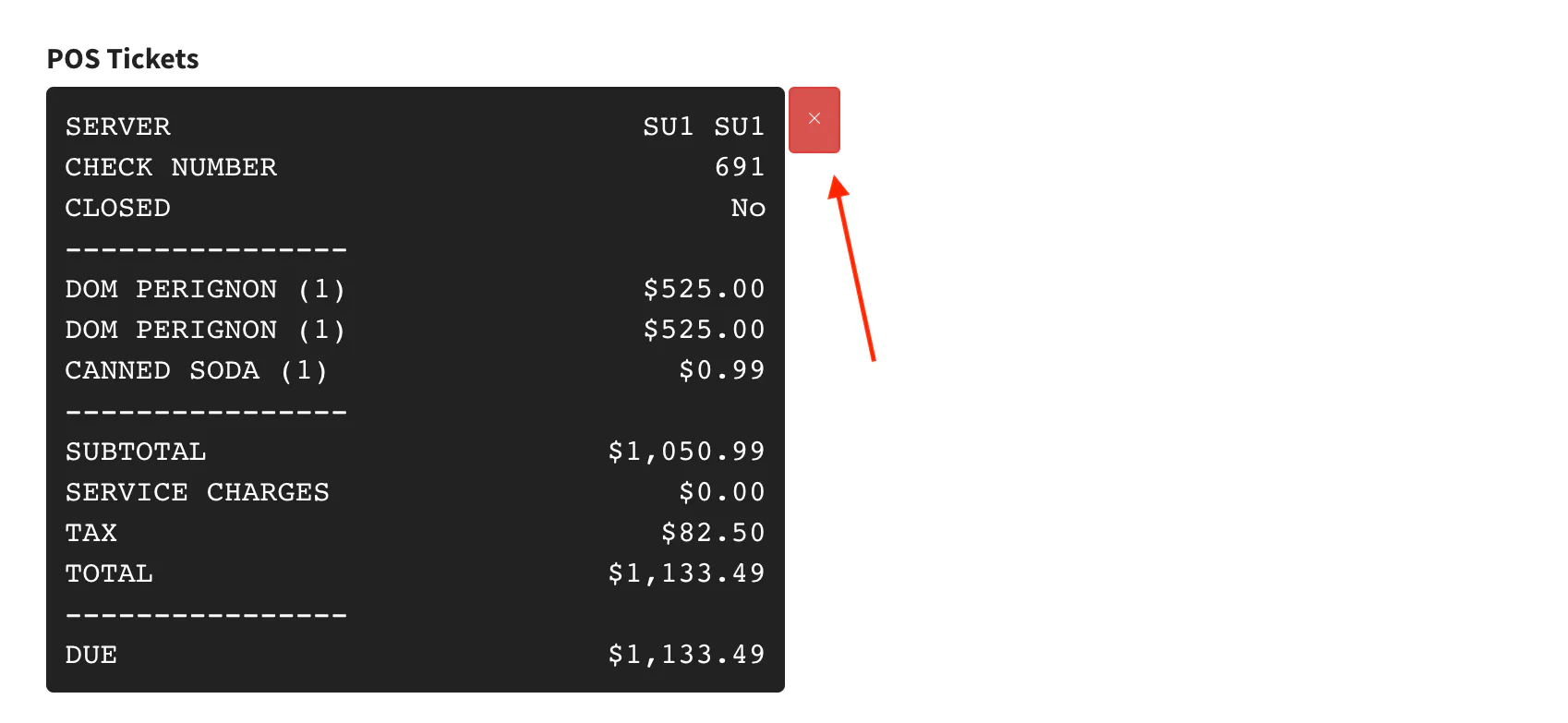
To remove a synced POS Ticket, click the red X next to it. This removes it from the reservation and recalculates the spend based on any remaining tickets.
Syncing Multiple Tickets
If you have multiple POS tickets that need to sync to one reservation, just add the Tablelist menu item with the POS code on each ticket -- they'll all sync to TablelistPro.
Closing Out POS Tickets
When you close out a ticket with the POS code, it automatically closes out the reservation in TablelistPro too.
Retroactive Syncing
You can re-open a ticket in your POS at any time, enter the POS sync code, and it'll sync to TablelistPro.