To assign a reservation to a VIP table on the app, tap the Reservations tab and open the reservation.
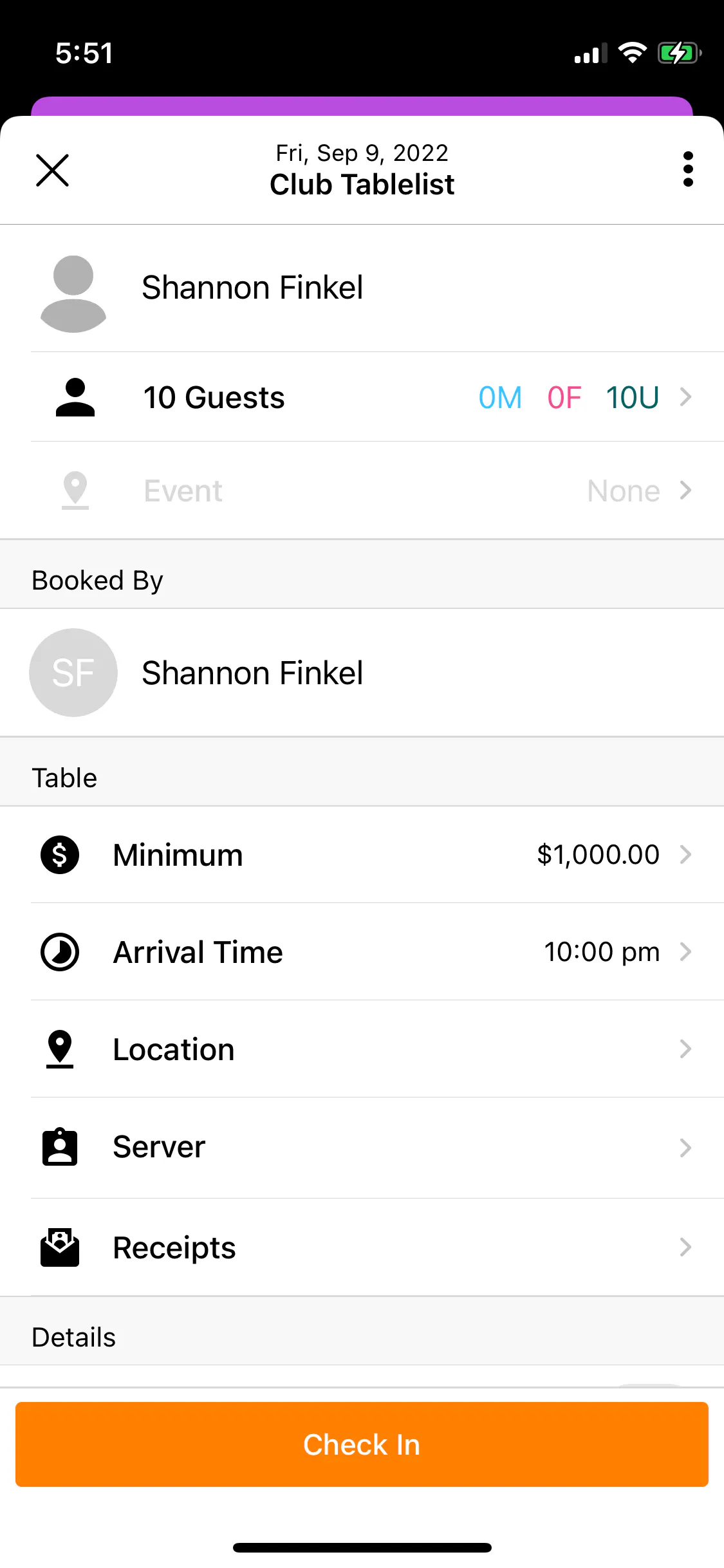
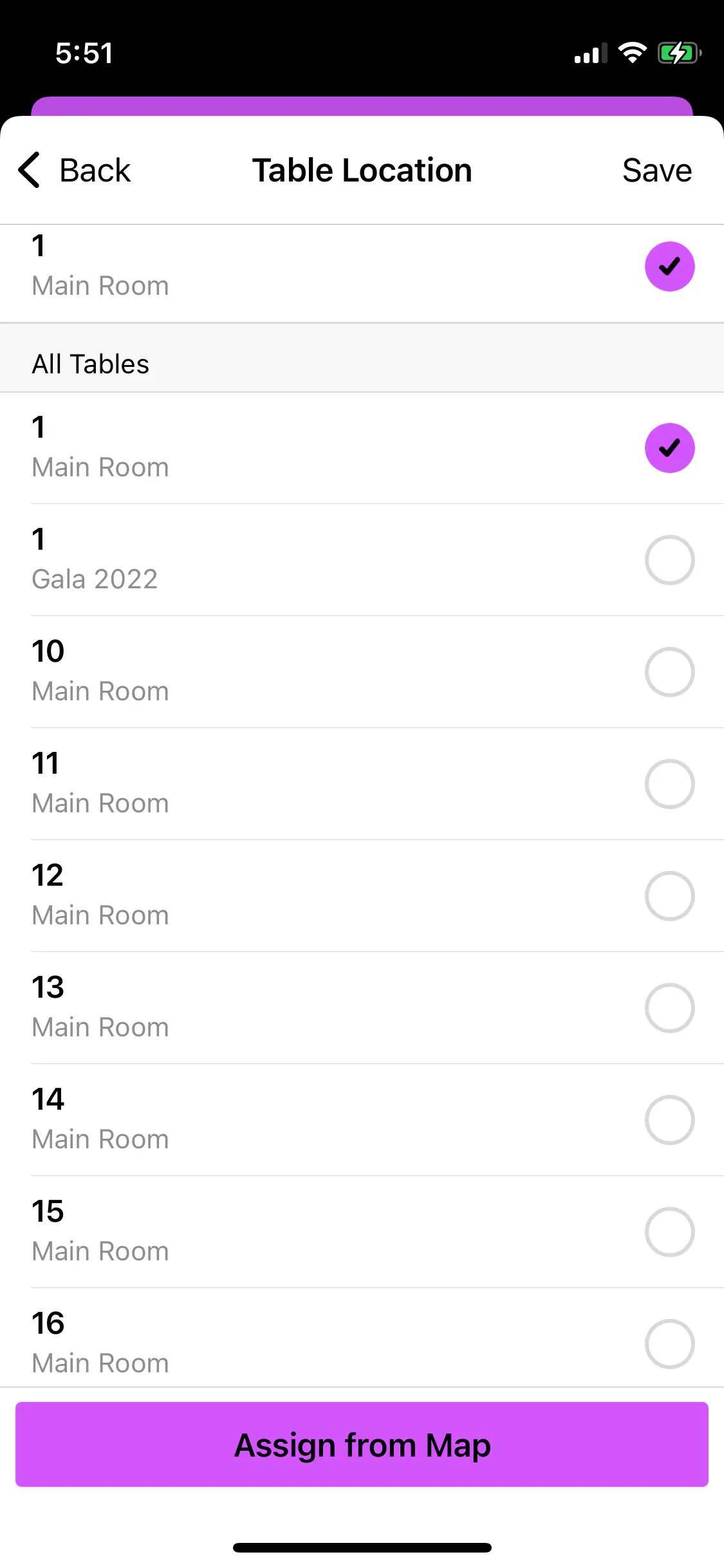
Tap Location to see your available tables for the night. You can assign from either the List view or the Map view.
From the List view: Tap the table until the purple checkmark appears, then press Save.
From the Map view: Tap Assign from Map. Make sure you're viewing the correct floor plan at the bottom -- tap the name to switch if needed. Tap the table until it's highlighted green, press Done, then hit Save.
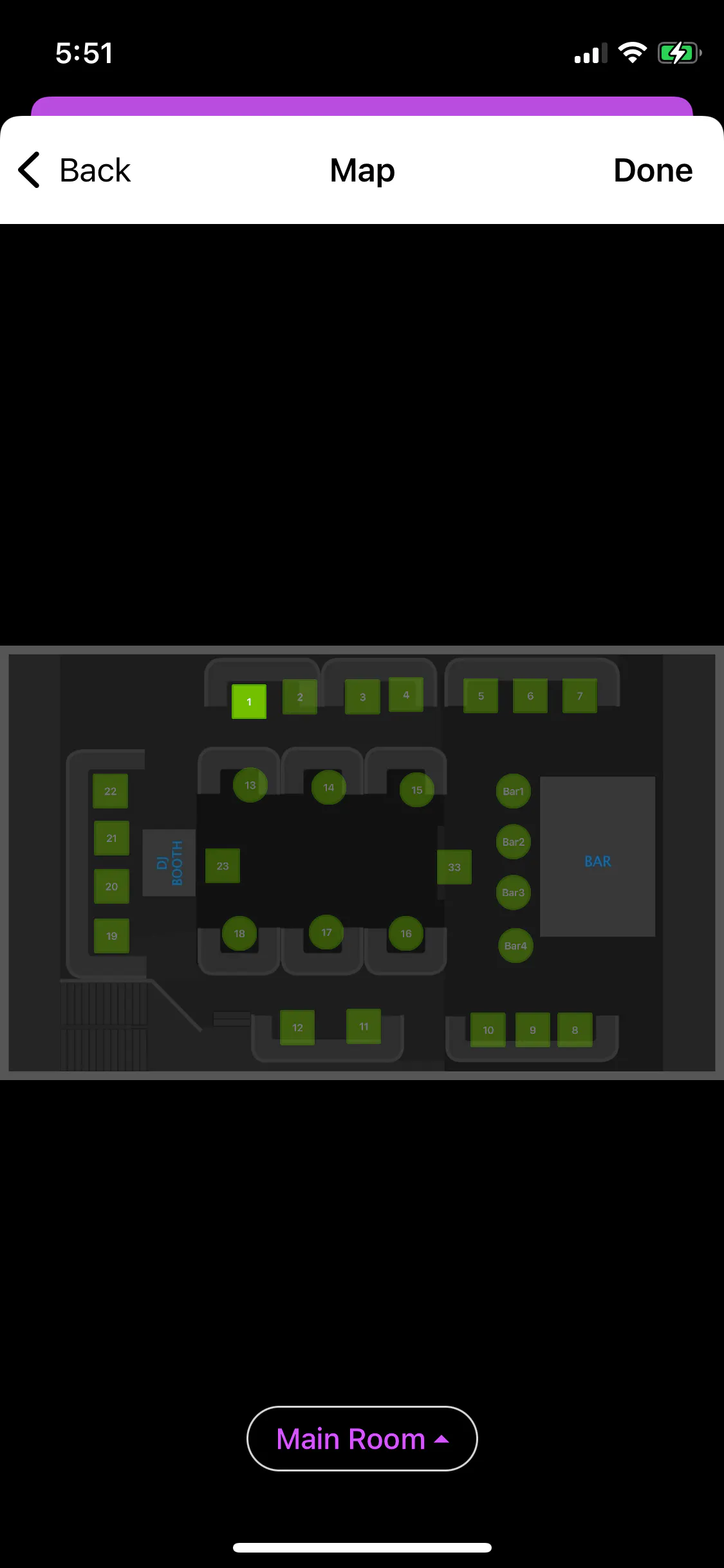
If the customer wants multiple tables, tap more than one to assign them all.
Once assigned, the table turns red on the Venue Map. Green = available, gray = checked in.
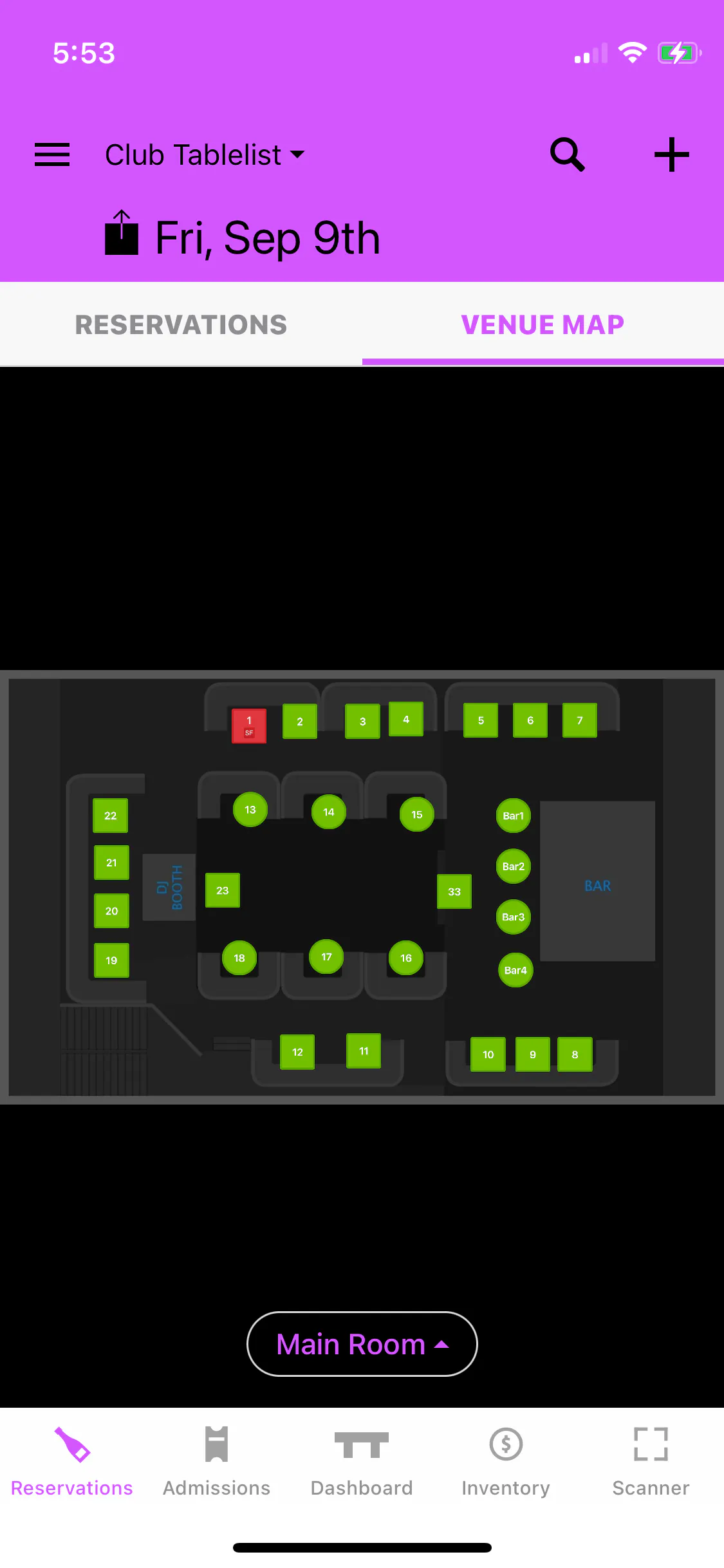
Need to move someone? Open the reservation, deselect the wrong table, pick the right one, and press Save.