Before you start, have this info ready:
- Ticket name (e.g., GA Ticket)
- Ticket description
- Price
- Quantity available
- Tax % (if applicable)
- Frequency
- If the inventory repeats weekly, specify which days
- Check-in start and end times
- The TablelistPro scanner will only scan QR codes during this window
- Terms & Conditions
To start selling tickets and covers (guest lists), open the sidebar, click Manage, then click Inventory.
Click the Tickets tab.
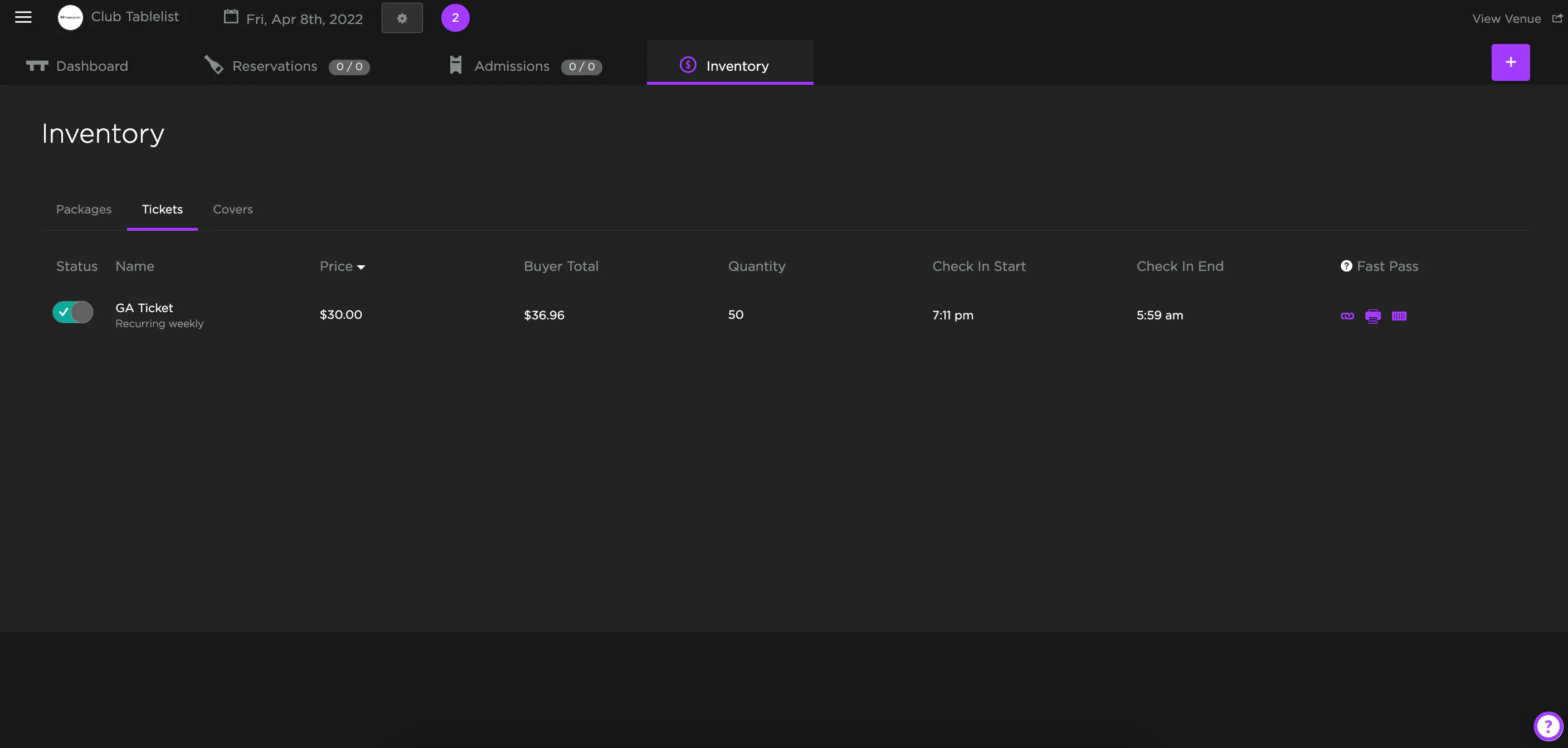
Select the date at the top, then click the purple plus sign on the right.
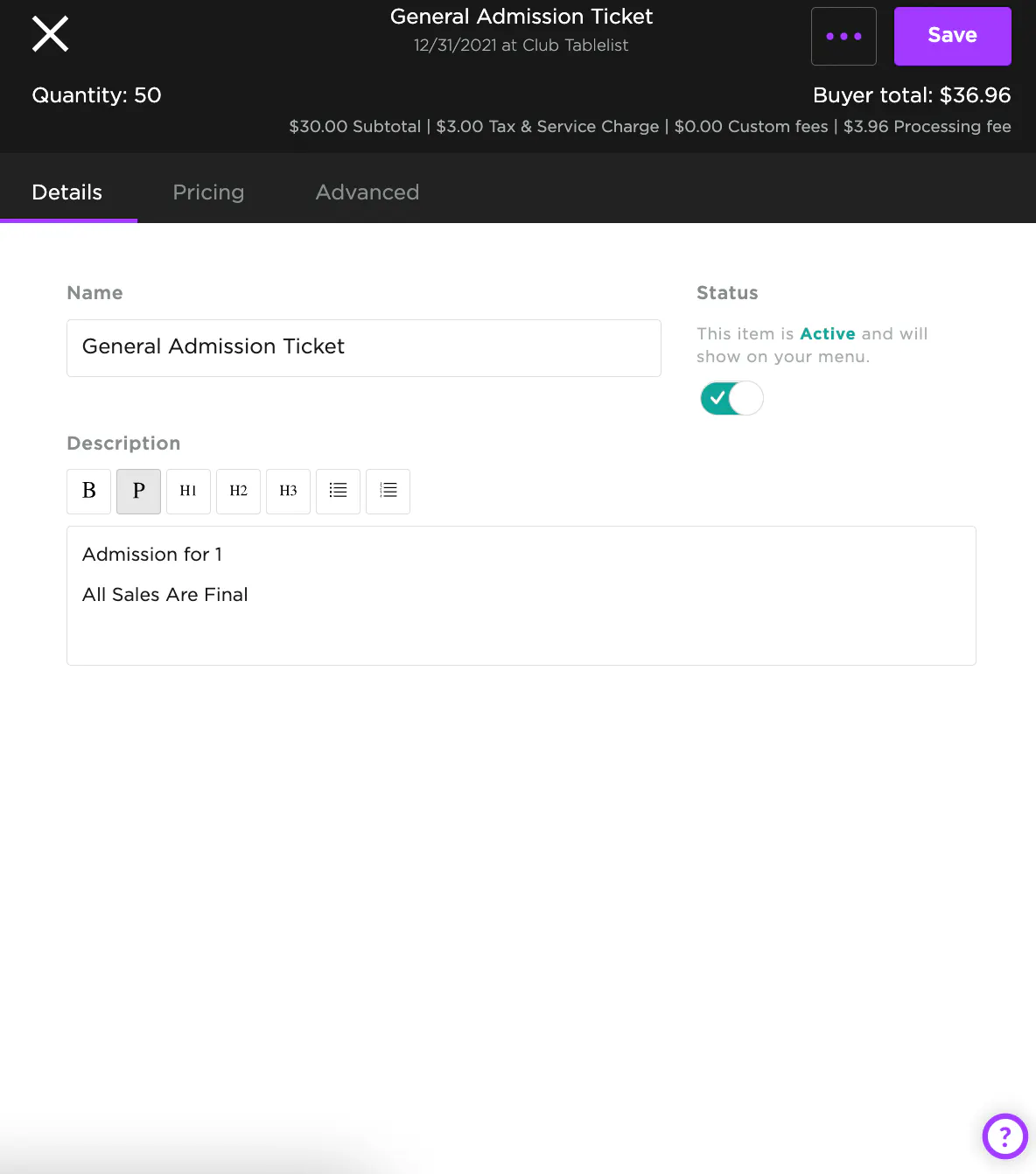
Under Details, fill in the inventory name (e.g., GA Ticket) and description.
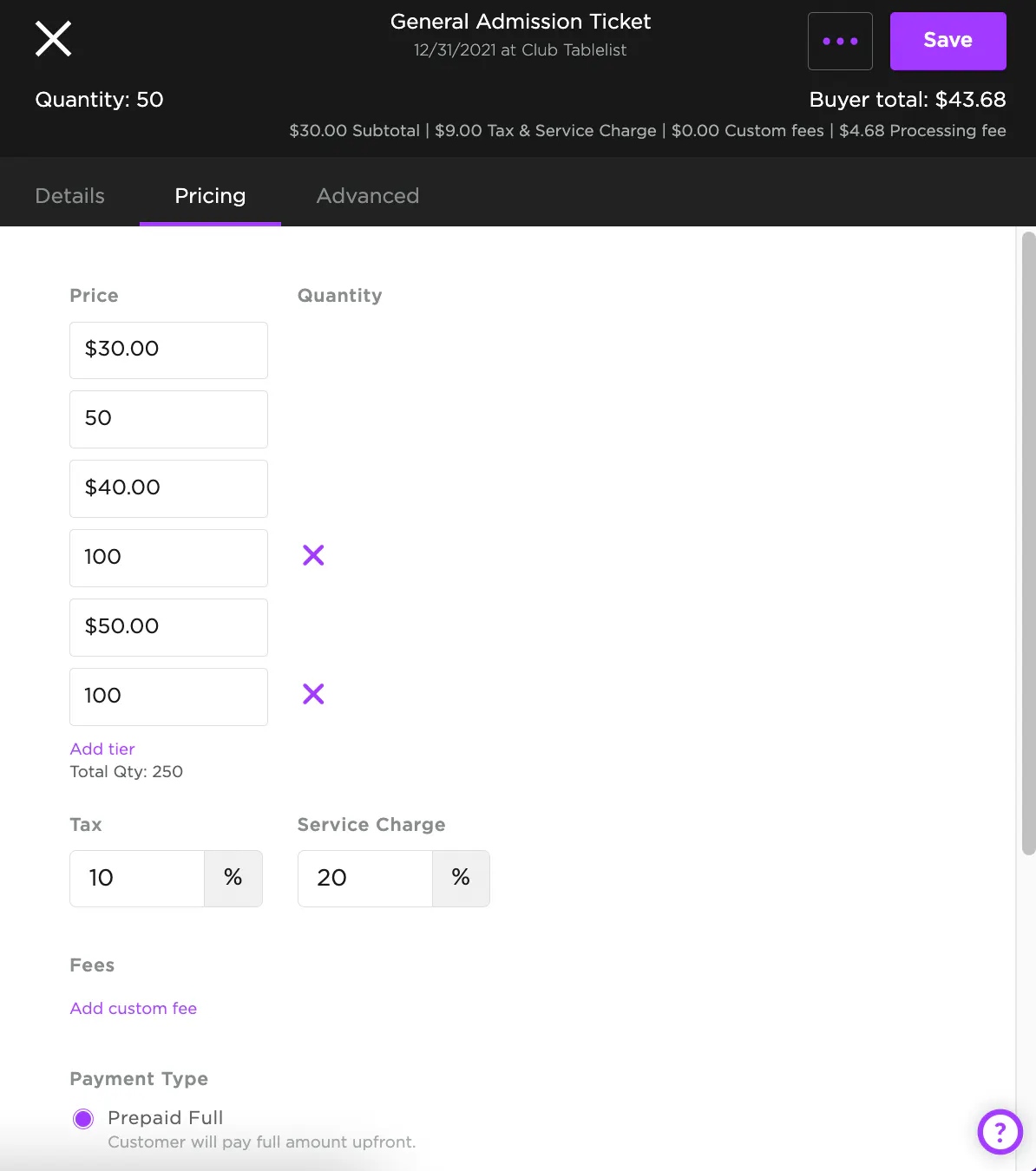
On the Pricing tab, fill in price, quantity, tax, service charge, and payment type.
To tier your pricing, click Add tier, then set the price and quantity for each tier.
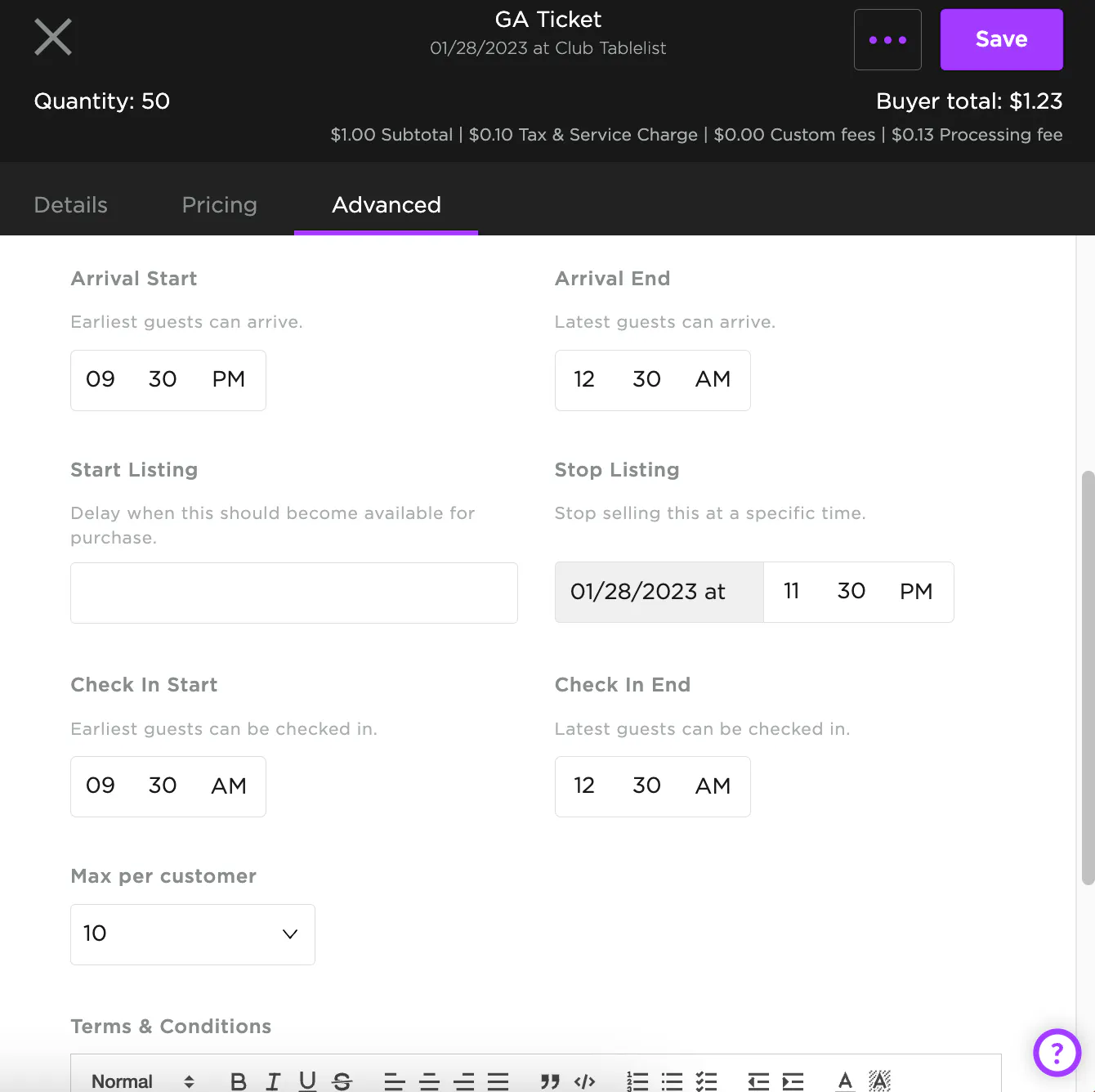
On the Advanced tab, fill in each field and set the Check-In Start and Check-In End times.
Important: The ticket scanner will only scan tickets during this window -- don't skip this step.
When everything's set, hit Save.