To create a new event, open the sidebar, click Events, then click the purple plus sign on the right.
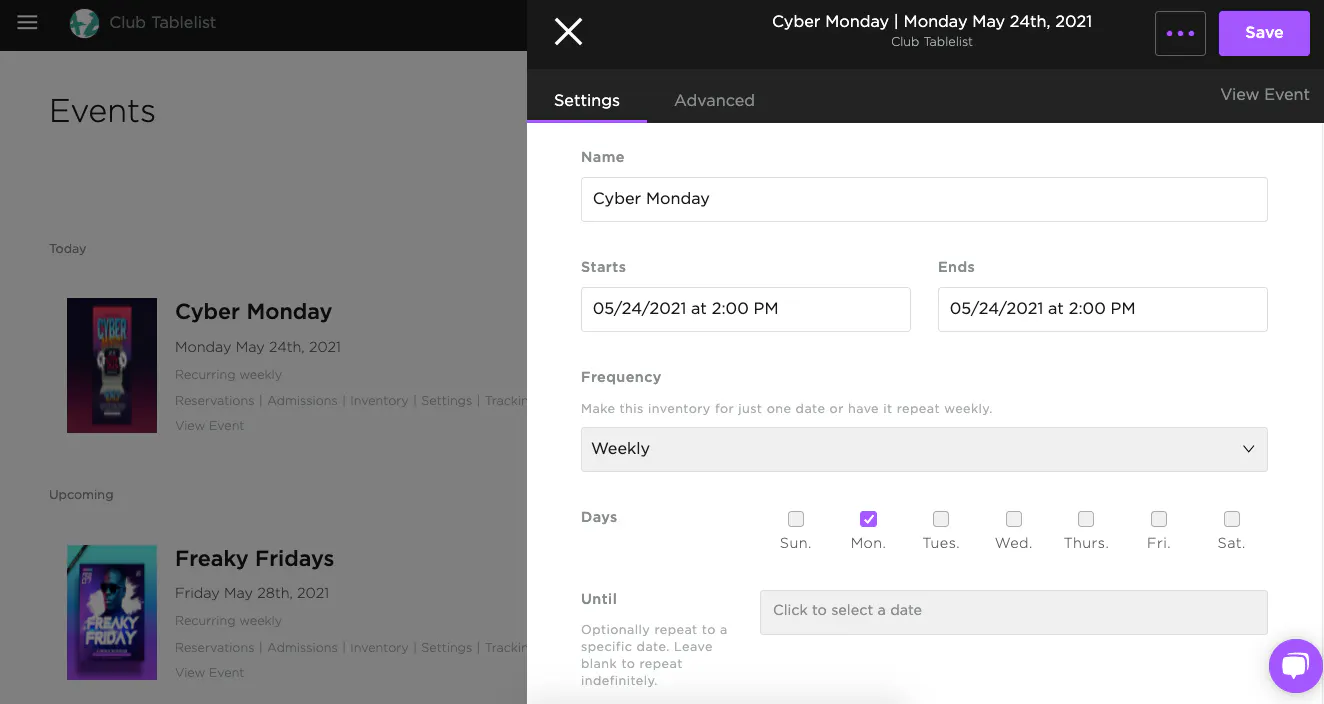
Under Settings, fill in all the details:
- Name of the event
- Start and end time
- If your event ends past 12am, update the Ends date to the following day
- Frequency
- For example, to repeat every Friday, set Frequency to Weekly and check Friday
- Visibility
- Events default to Private when first created. To make them public, click the Public button
- Public: Visible to everyone
- Private: Only visible to those with a direct link
- Go live date and time
- Coordinate a specific launch date and time in the future
- Event poster
- We recommend 1884 x 2460px in PNG or JPG format. PDF, HEIC, and other file types aren't compatible
- Description
The more info you provide, the more likely you are to attract guests -- and the fewer questions they'll have.
Under Advanced, add a YouTube URL and the type of music playing at the event. You can also add an external ticket link to drive customers to another site for tickets.
For more on External Ticket Links, check out this page.
To show your floor plan on the event page, toggle on Enable Map Widget.