TablelistPro has its own built-in CRM, but you can also connect Insightly CRM for more advanced functionality.
With this integration, whenever you add or update reservations and/or admissions in TablelistPro, your customers automatically sync to Insightly as Contacts and your reservations/admissions as Opportunities.
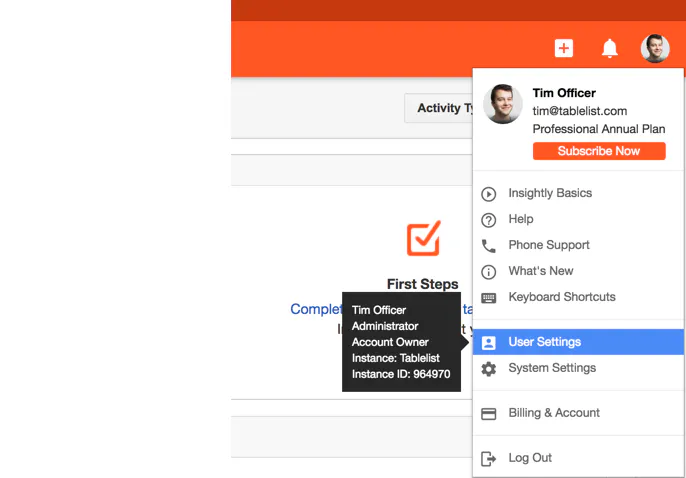
You'll need an Insightly API key. Log into Insightly, click the user menu, then go to User Settings.
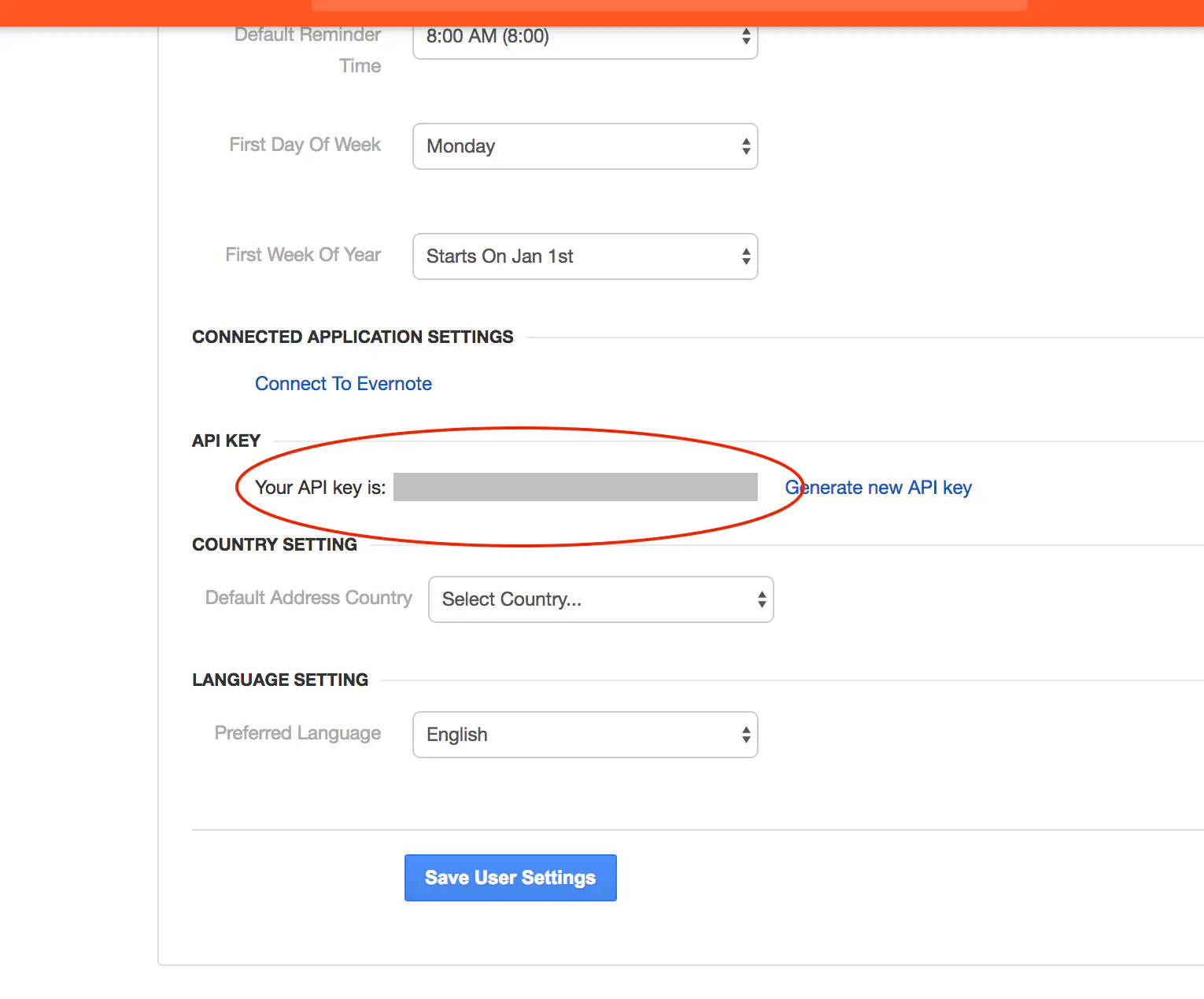
Scroll down to find the API key.
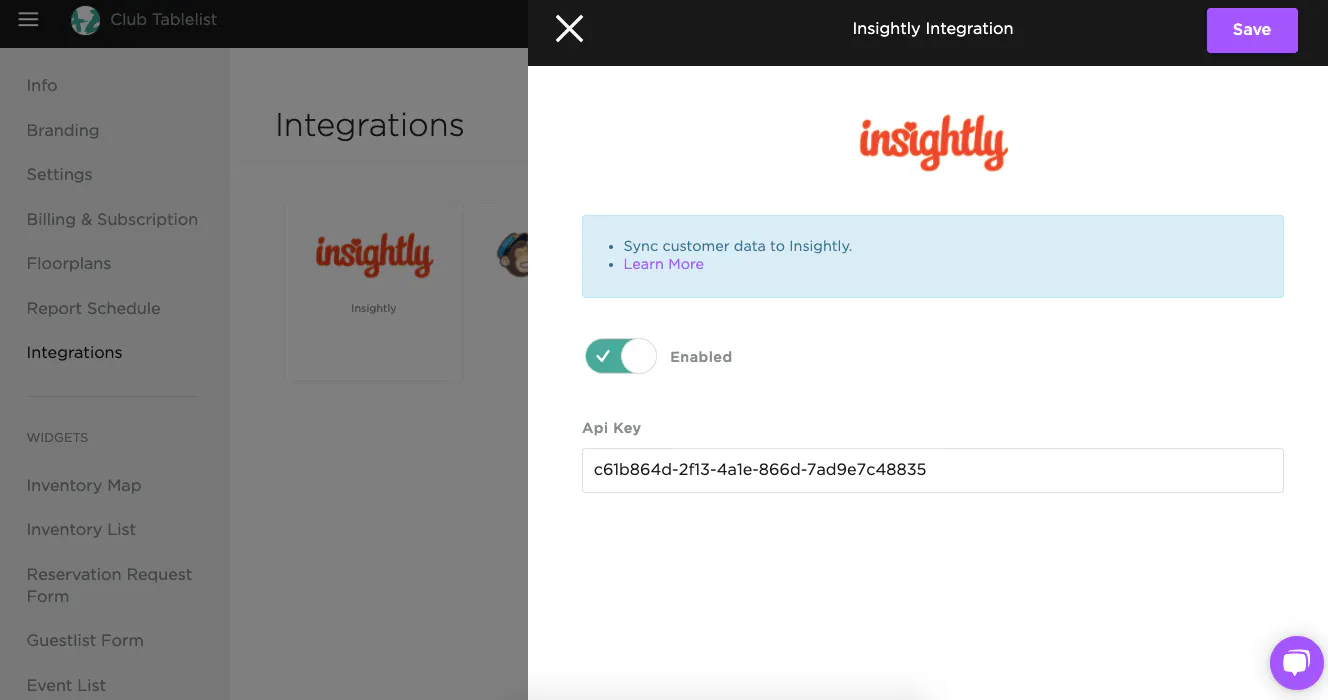
On TablelistPro's Integrations page, click Insightly, toggle the button to enable it, enter the API key, then press Save.
Custom Fields
Some data that TablelistPro sends to Insightly doesn't fit their default fields, so you'll need to set up Custom Fields. Without them, data syncing will fail. Follow Insightly's guide at https://support.insight.ly/hc/en-us/articles/204061084-How-to-create-a-custom-field.
Custom Fields for Contacts
Use the exact name and type listed:
- Total Spend - Number with Field Label Total_Spend
- Total Table Spend - Number with Field Label Total_Table_Spend
- Total Ticket Spend - Number with Field Label Total_Ticket_Spend
- Total Guestlist Spend - Number with Field Label Total_Guestlist_Spend
- Average Table Minimum - Number with Field Label Average_Table_Minimum
- Average Table Spend - Number with Field Label Average_Table_Spend
- Average Ticket Spend - Number with Field Label Average_Ticket_Spend
- Average Guestlist Spend - Number with Field Label Average_Guestlist_Spend
- Total Visits - Number with Field Label Total_Visits
- Notes - Text with Field Label Notes
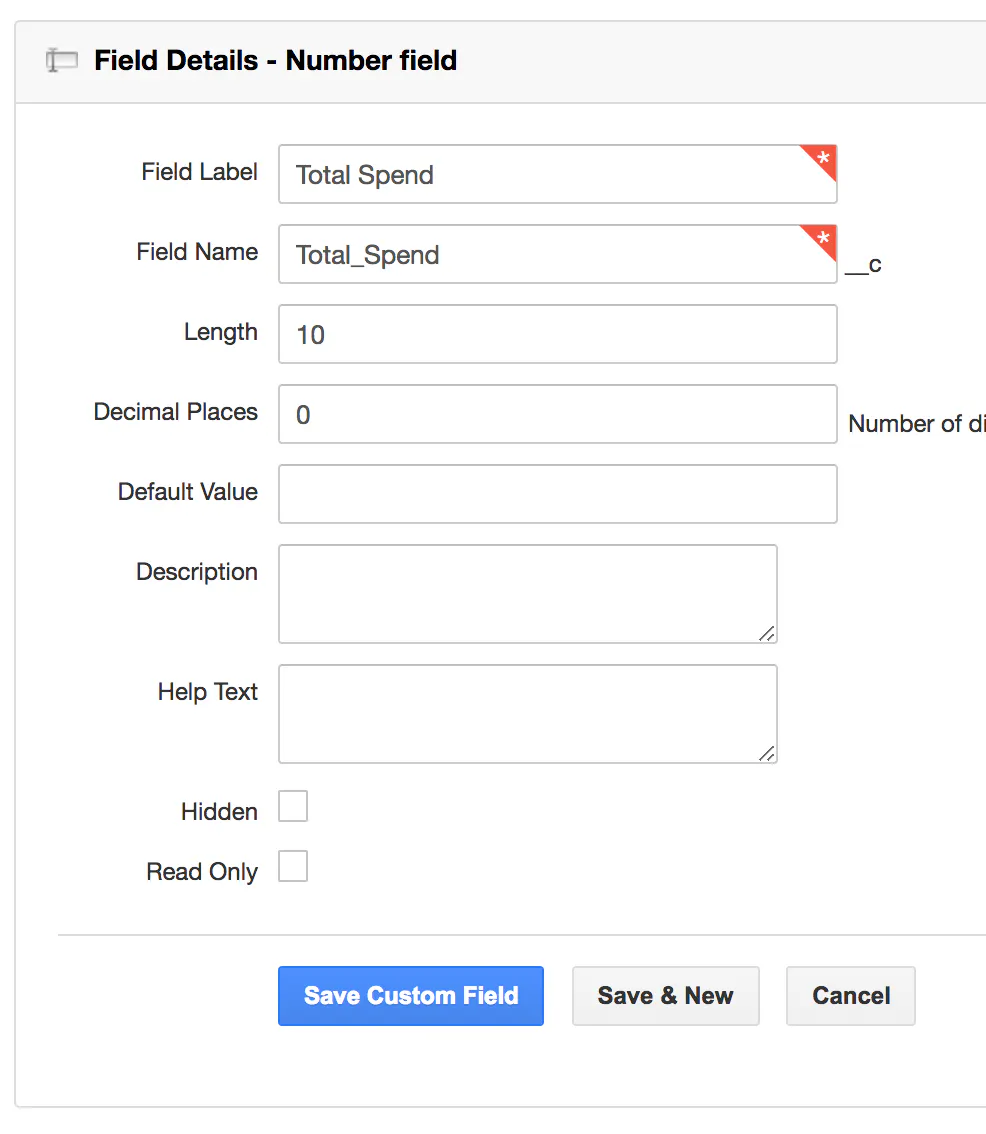
Here's an example of adding the Total Spend custom field:
Custom Fields for Opportunities
TablelistPro also syncs reservation and admission data to Insightly as Opportunities:
- Type - Text with Field Label Type (values: PACKAGE, TICKET, or GUEST_LIST)
- Guests Expected - Text with Field Label Guests_Expected
- Notes - Text with Field Label Notes
- Server - Text with Field Label Server
- Channel - Text with Field Label Channel
- Attribution - Text with Field Label Attribution
- Reserved - Text with Field Label Reserved
- Checked In - Text with Field Label Checked_In
- Closed - Text with Field Label Closed
- Cancelled - Text with Field Label Cancelled
- Customer Name - Text with Field Label Customer_Name
- Customer Email - Text with Field Label Customer_Email
- Venue - Text with Field Label Venue