TablelistPro's Mailchimp integration automatically syncs your customer data from TablelistPro into Mailchimp.
You'll need a Mailchimp API key to get started:
- Go to the API Keys section of your Mailchimp account
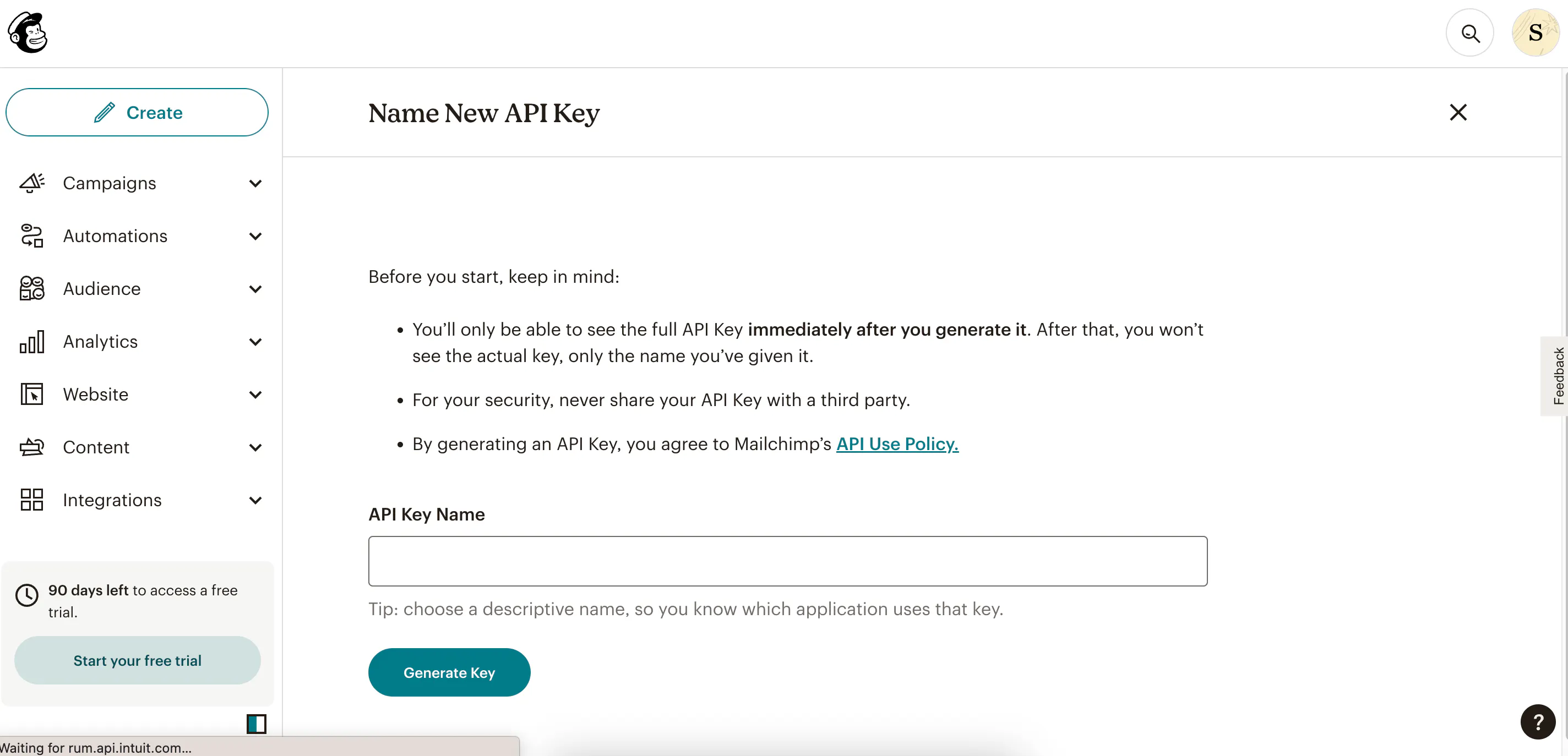
- Click Create New Key
- Name your key descriptively so you know which app uses it. You'll only see the name and first 4 digits on your key list
- Click Generate Key
- Click Copy Key to Clipboard and save it somewhere secure -- you won't be able to see or copy it again. If you lose it, you'll need to generate a new one and update any integration that uses it
- Click Done
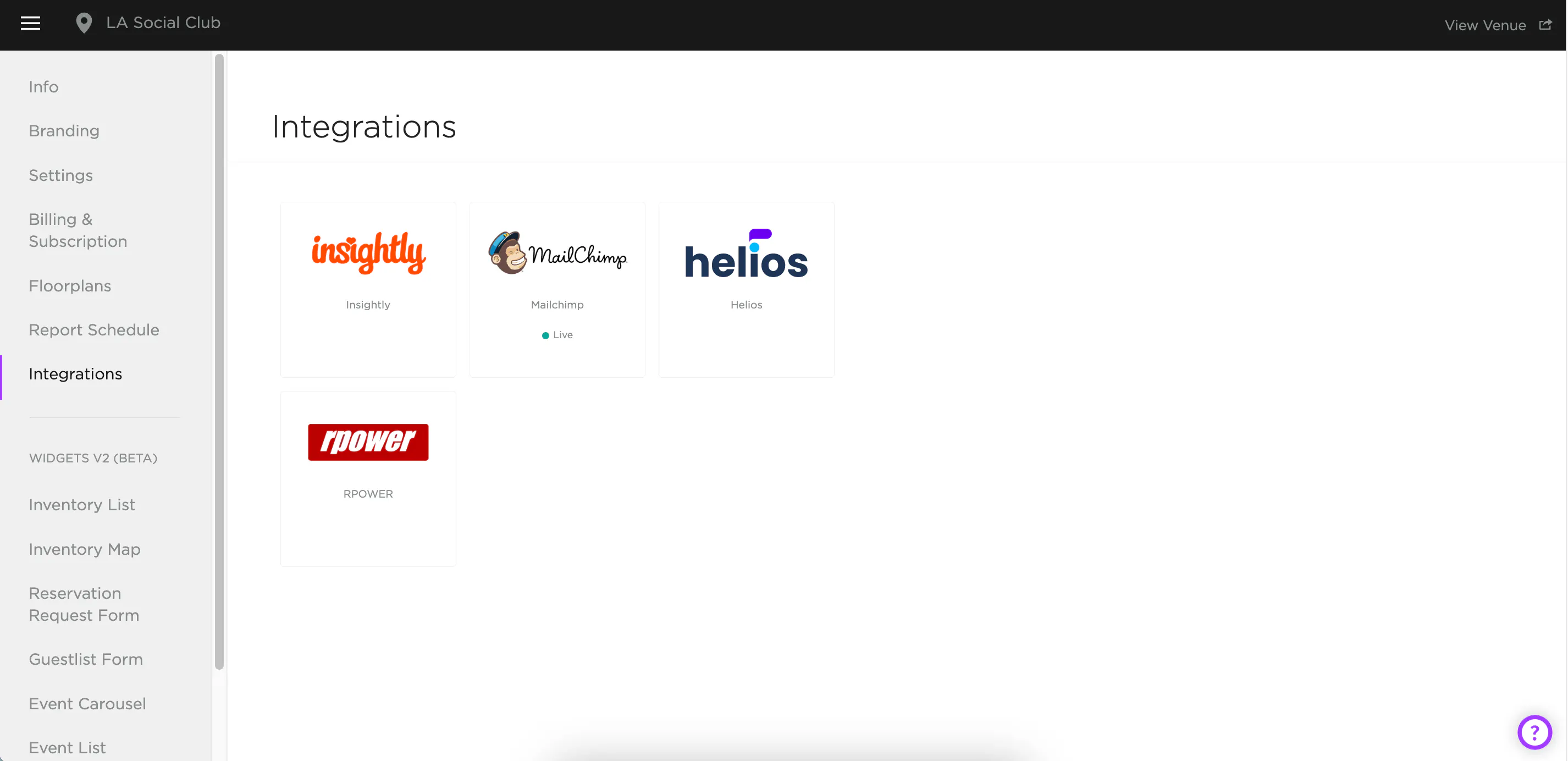
Next, go to the Integrations page in TablelistPro.
Click Mailchimp, paste your API key, and press Save.
When you see "Live" with a green dot below Mailchimp, you're good to go.
TablelistPro will create a Mailchimp list called {{ your venue name }} - Tablelist and add your customers to it.
To create your own lists in Mailchimp, you'll need to copy customers from this list. Follow Mailchimp's guide at https://mailchimp.com/help/copy-or-move-subscribers-to-a-list/.